How to Choose the Best Electronics Calendar for Your Business
Choosing an Electronics Calendar for your business is not just a matter of picking a clean-looking screen. The right system should help people see deadlines, coordinate meetings, and avoid missed handoffs. A small team may need a shared monthly view, while a growing company may require role-based access, recurring events, and links to project tools. The best choice depends on how your employees actually work. A calendar that looks impressive in a demo can feel awkward during a busy Monday morning.
Start by checking the basics: ease of use, device compatibility, search, notifications, and integration with the tools your team already uses. Consider who can create or edit events, and whether private appointments remain private. Reliability matters, too. Ask about support, data export, backup practices, and the costs that appear after a trial ends. Test realistic tasks, such as moving a client call, changing a shared deadline, or viewing schedules on a phone. Small details matter. A delayed alert can disrupt a full afternoon. That can change. No product is perfect, and a feature list alone will not reveal every frustration. Invite a few employees to test the calendar before committing, then compare their feedback with your business needs. This guide explains the practical criteria to weigh, the questions to ask vendors, and the trade-offs that can make one Electronics Calendar a better fit than another.
Define Your Business Scheduling Needs and Calendar Requirements
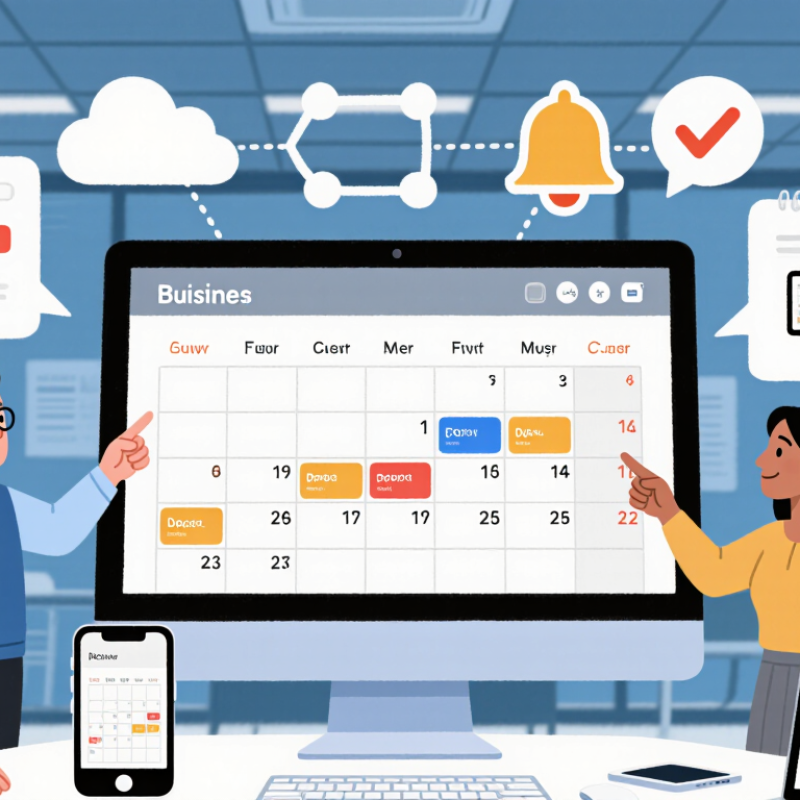
Before choosing an electronic calendar, map how your business actually schedules work. List recurring meetings, staff shifts, customer appointments, equipment bookings, and deadlines. Note who creates each event and who needs to see it. A small repair shop may need a shared bench schedule, while a consulting team may need client time zones and confidential meeting details kept separate. Real needs matter more than a long feature list.
Tips: Write down three scheduling problems your team faces each week. Check whether the calendar supports shared access, adjustable reminders, mobile viewing, and the tools you already use. Test it with a sample week before committing.
Set clear requirements for permissions, notifications, and ease of use. Staff should be able to find the right schedule quickly, without seeing information they do not need. Check how changes appear across devices, and ask what happens when someone misses a reminder or works offline. These details can prevent double bookings and last-minute confusion. Still, no checklist catches every edge case. A trial may reveal that a feature looks useful but slows down daily work. Gather feedback from the people who will use the calendar, then revise your requirements before making a decision.
Compare Electronic Calendar Types and Core Features
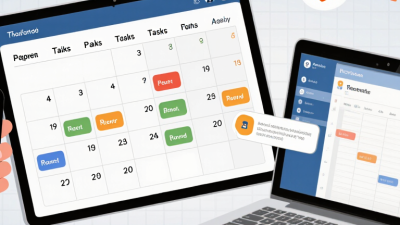
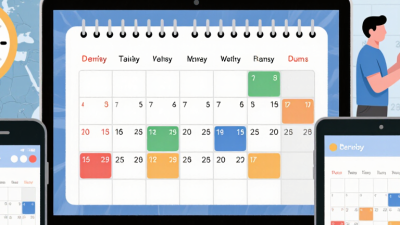
Electronic calendars generally fall into three types: cloud-based apps, shared room displays, and dedicated desk or wall devices. Cloud calendars suit distributed teams, with shared schedules and remote access. Room displays make availability visible beside a meeting space. Dedicated devices offer a focused, always-on view, but may have fewer integrations. Match the format to where employees actually plan their day.
Core features matter more than a polished screen. Check two-way calendar syncing, recurring-event controls, time-zone handling, permission settings, reminders, and readable layouts. The 2023 Work Trend Index survey, covering 31,000 workers in 31 countries, found that 68% lacked enough uninterrupted focus time. A calendar cannot fix workload, but clear blocks and fewer scheduling conflicts may help teams protect focus. Test sync delays and access rules before rollout; small failures can create real confusion.
Tips: Pilot one team for two weeks. Test a room display at a glance, and check whether remote staff see the same changes. Keep alerts limited. Perfect settings are unlikely on day one.
Assess Integrations, Access Controls, and Data Security
Choosing a business calendar is less about colorful views than what it can safely connect. Map every integration before enabling it: identify the data exchanged, where it goes, and who can revoke access. Check whether invitations expose attendee details, whether files inherit calendar permissions, and whether administrators can review sign-in and sharing logs. Prefer encrypted connections and clear retention controls. Small test first. The UK Cyber Security Breaches Survey 2024 found that 50% of businesses identified a breach or attack. This covered the previous 12 months.
Treat access controls as daily operating settings, not a setup task. Give staff only the permissions their roles require, and remove access promptly when responsibilities change. Require multi-factor authentication for administrators and limit who can create external sharing links. Ask the vendor how it handles backups, deletion requests, incident notification, and data location; record the answers instead of relying on a sales call. The same survey found phishing was reported by 84% of businesses that identified breaches or attacks. That makes account protection especially relevant. Still, a tidy permissions table can become stale after a team reshuffle. No setup stays perfect. Schedule recurring access reviews, and test the calendar with ordinary staff accounts before adding sensitive meetings.
Evaluate Usability, Compatibility, and Total Cost
How to Choose the Best Electronics Calendar for Your Business
Evaluate Usability, Compatibility, and Total Cost
A business calendar should fit the way your team already plans, not force everyone into a new routine. Test everyday tasks: add a shift, move a meeting, and check tomorrow’s schedule on a phone. If staff need repeated guidance, the interface may be too demanding. Small friction adds up. Ask a few employees to try it during a normal workday, not just during a polished demonstration.
Check that the calendar works with your existing devices, scheduling tools, and access settings. Confirm that updates appear promptly across phones, computers, and any shared displays. For teams in different locations, test time zones and permission controls. Then calculate the full cost: subscriptions, setup, support, hardware, integration, and staff time. A low purchase price can hide ongoing expenses. I would not rely on a demo alone; it can miss awkward tasks and connection delays.
Tips: Create a short trial using real schedules and typical devices. Record setup time, missed updates, and questions from staff. Compare costs over several years, including replacements. One trade-off may remain: the easiest option is not always the most flexible, so decide which matters more for your team.
Choose a Calendar and Plan Its Business Rollout
Choosing an electronic calendar is only the start; a clear rollout helps people use it consistently.
Set a practical goal, such as reducing missed room bookings or making shift changes easier to track. Identify who will maintain shared events and who can view them. Keep it simple. A calendar that demands too many steps may be ignored.
Pilot the setup with one team before expanding it. Add a few real events, such as a Monday staff meeting or a maintenance window, and check how they appear on phones and office screens. Ask staff to flag confusing labels, duplicate reminders, or access problems. A pilot will not reveal everything, but it can catch avoidable friction. Set a launch date, share a short guide, and leave time for questions. Review usage after a few weeks; adjust event categories and reminder settings based on what people actually need.
Tips: Name events clearly, agree on who updates them, and avoid filling the calendar with low-value alerts. Keep a simple backup process for urgent schedule changes. Some habits may take longer to shift than expected. That is worth reviewing.